How to Pass Let's Encrypt Validation on a Different Port with IIS (win-acme)
When self-hosting, you create and install a Let's Encrypt certificate with win-acme. This post shows how to pass validation using a port other than 80 when port 80 can't be used for some reason.
Contents
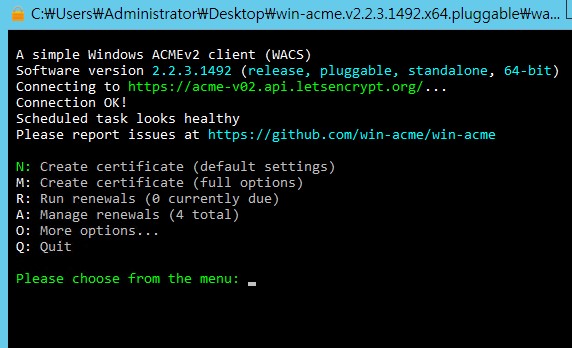
The problem
If you use Windows IIS and want to apply a free Let's Encrypt certificate, the win-acme project is the easiest way to do it.
In most cases it works without any problems, but if port 80 is blocked for some unavoidable reason, certificate validation keeps failing. After 5 failures in an hour, validation is blocked for an hour, so it isn't easy to try many times while changing things around.
The solution
The documentation is hard to find, but https://www.win-acme.com/reference/plugins/validation/tls-alpn/selfhosting
says you can run validation on a separate port with --validationport. To actually use it,
you have to type the command line yourself.
Entering the following creates certificates for all of that site's domain names at once.
wacs.exe --source iis --siteid <SiteID> --validationport <SitePort> --installation iis
- You need to run cmd as administrator.
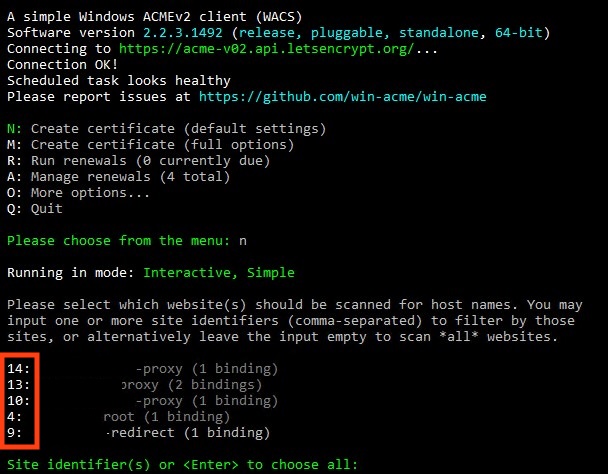
- SiteID: Run win-acme and choose N: Create certificate. It lists the IIS sites you can create certificates for, with an ID in front of each. Just check the site ID, close win-acme, and run the command above from the command line.
- SitePort: Enter the port the site actually runs on, e.g. 3000, 8080, ...